
v1.1.0 · Free · Windows 10/11
Accept your matches from your phone.
Queued up and went to make something to eat, or stepped away from your PC? MutchEz runs on your PC and shows a QR code. Scan it with your phone and accept or decline your League of Legends match from anywhere in your house.
No app to install on your phone · No memory injection · Same Wi-Fi only
Step 1
Open MutchEz on your PC
Step 2
Scan the QR code
Step 3
Accept from your phone
Features
Never miss a queue pop again.
MutchEz turns your phone into a remote for the League Client's accept button. Nothing more, nothing less.
Accept from your phone
When a match is found, your phone shows it instantly. Accept or decline with one tap, wherever you are in the house.
QR pairing
The desktop app generates a QR code with the address of its local server. Scan it with your camera and you are connected.
Nothing to install on mobile
The phone side runs in your browser, so it works on Android and iPhone alike. You only need a camera to scan the code.
Live queue status
See your queue timer and the client connection status in real time, so you know exactly when to head back.
You stay in control
MutchEz never accepts a match on its own. It only forwards your decision from the phone to the League Client.
Official client API
Built on the League Client (LCU) API. No memory injection, no DLLs, no changes to game files.
How it works
Three steps, ready in seconds.
MutchEz creates a bridge between your PC and your phone over your home network. Your phone just needs to be on the same Wi-Fi network as your PC.
- 01
Keep the League Client open
Install MutchEz on your Windows PC and open it alongside the League of Legends client. It detects the client automatically.
- 02
Scan the QR code
MutchEz starts a local server and shows a QR code. Scan it with your phone camera before you enter the queue — it opens in your browser.
- 03
Accept or decline
Start your queue and walk away. When the match is found, accept or decline it from your phone.
Screenshots
See MutchEz in action.
The desktop app shows the QR code; your phone does the rest.
On your PC
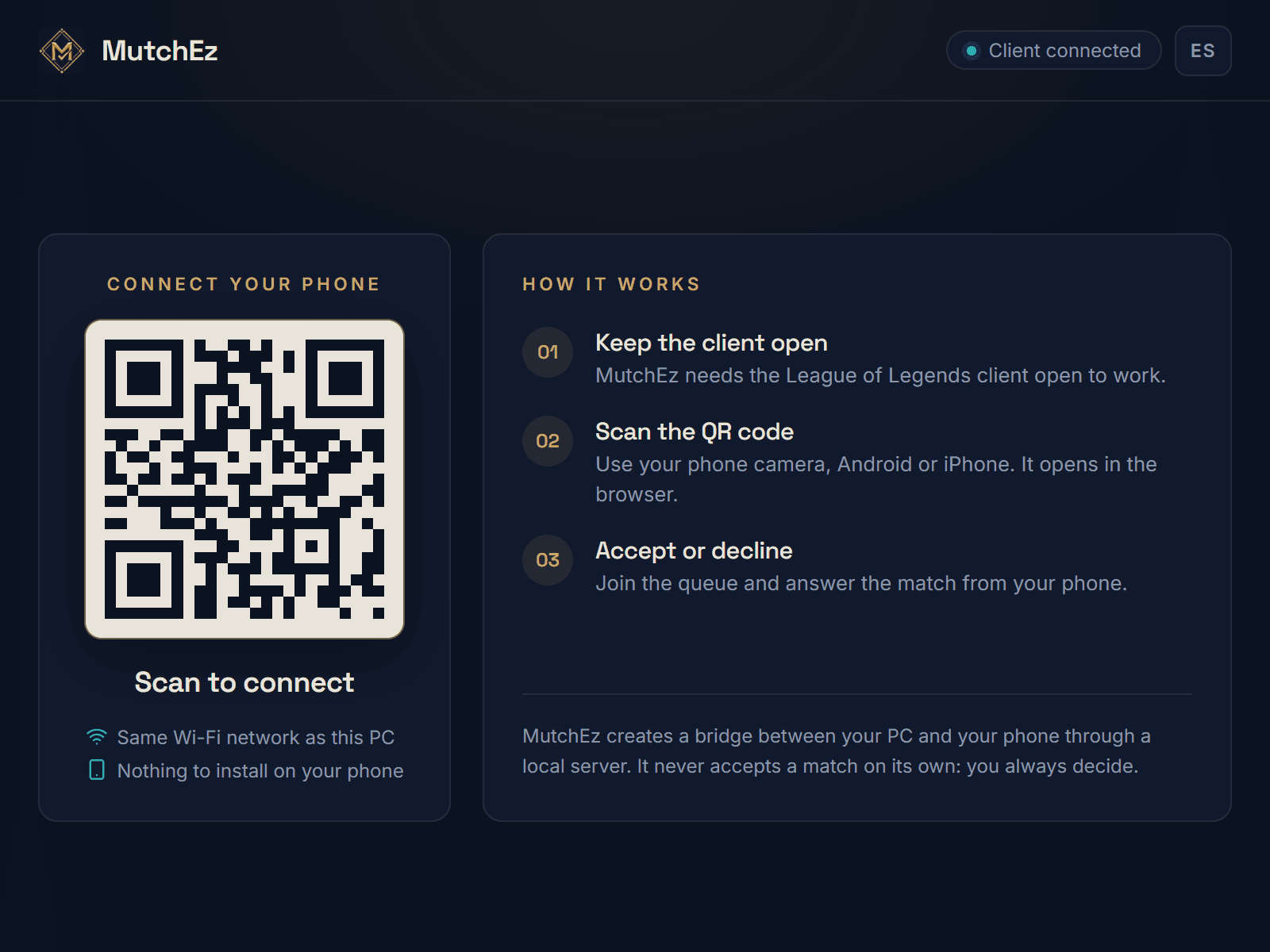
Scan the QR code to connect your phone. 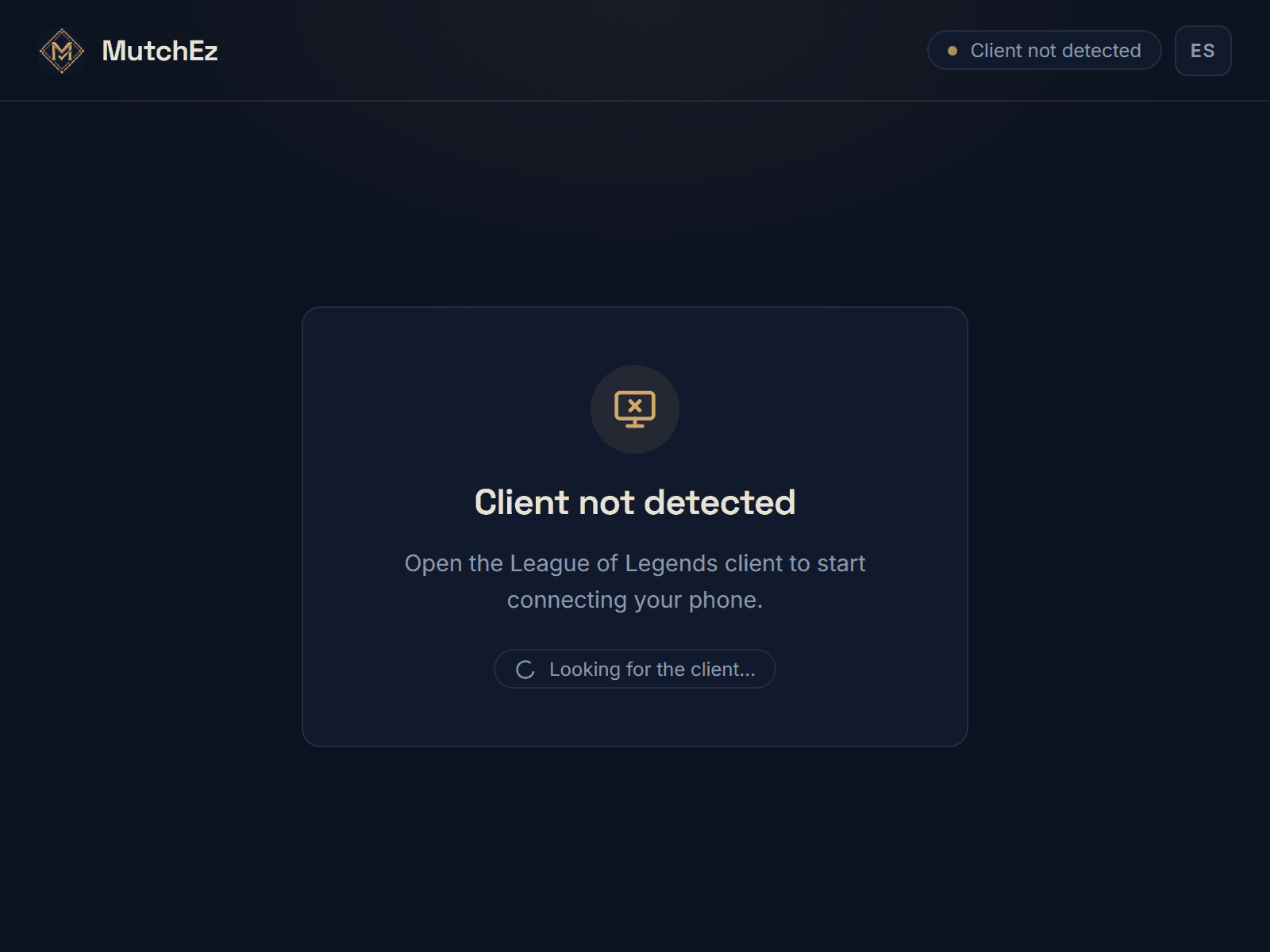
MutchEz waits until the League Client is open.
On your phone
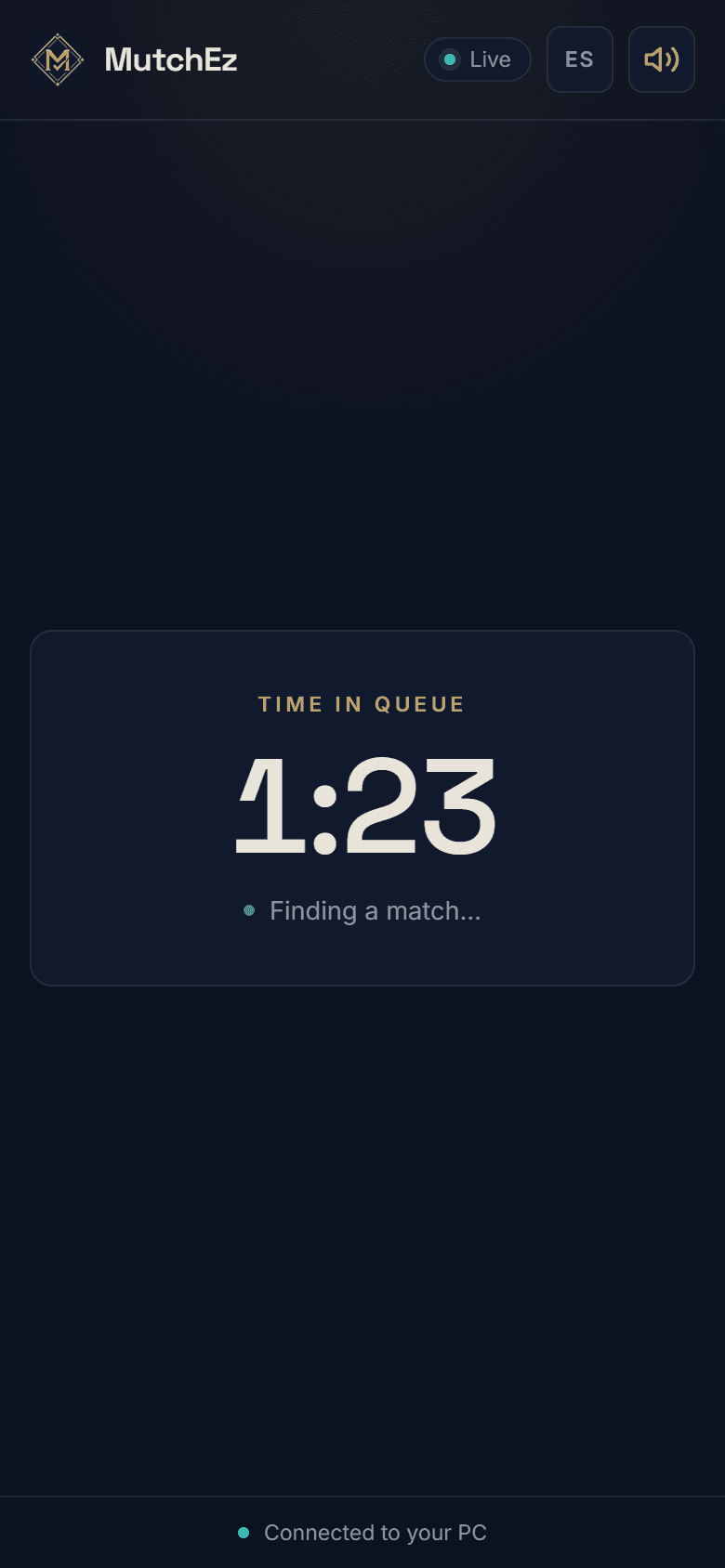
Live queue timer while you search. 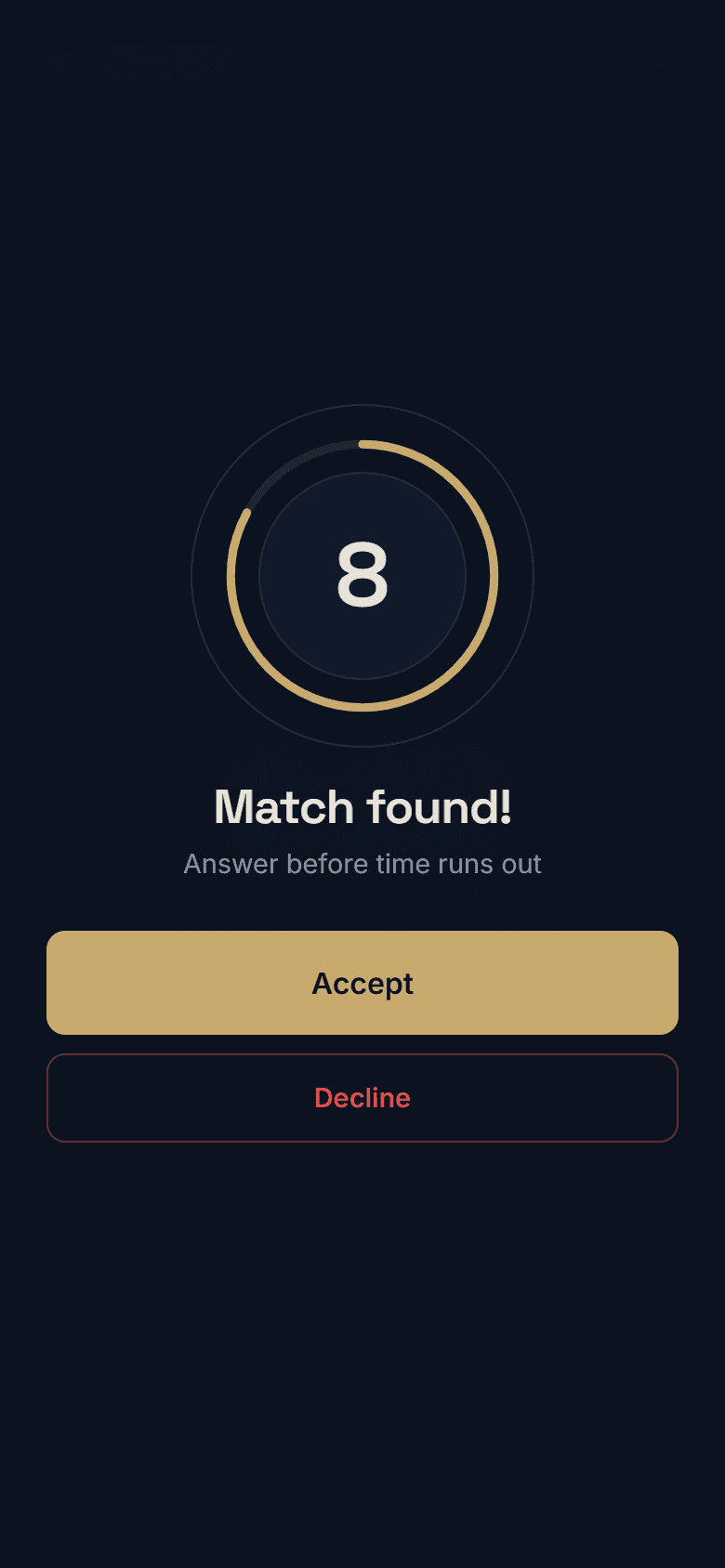
Match found: accept or decline in one tap. 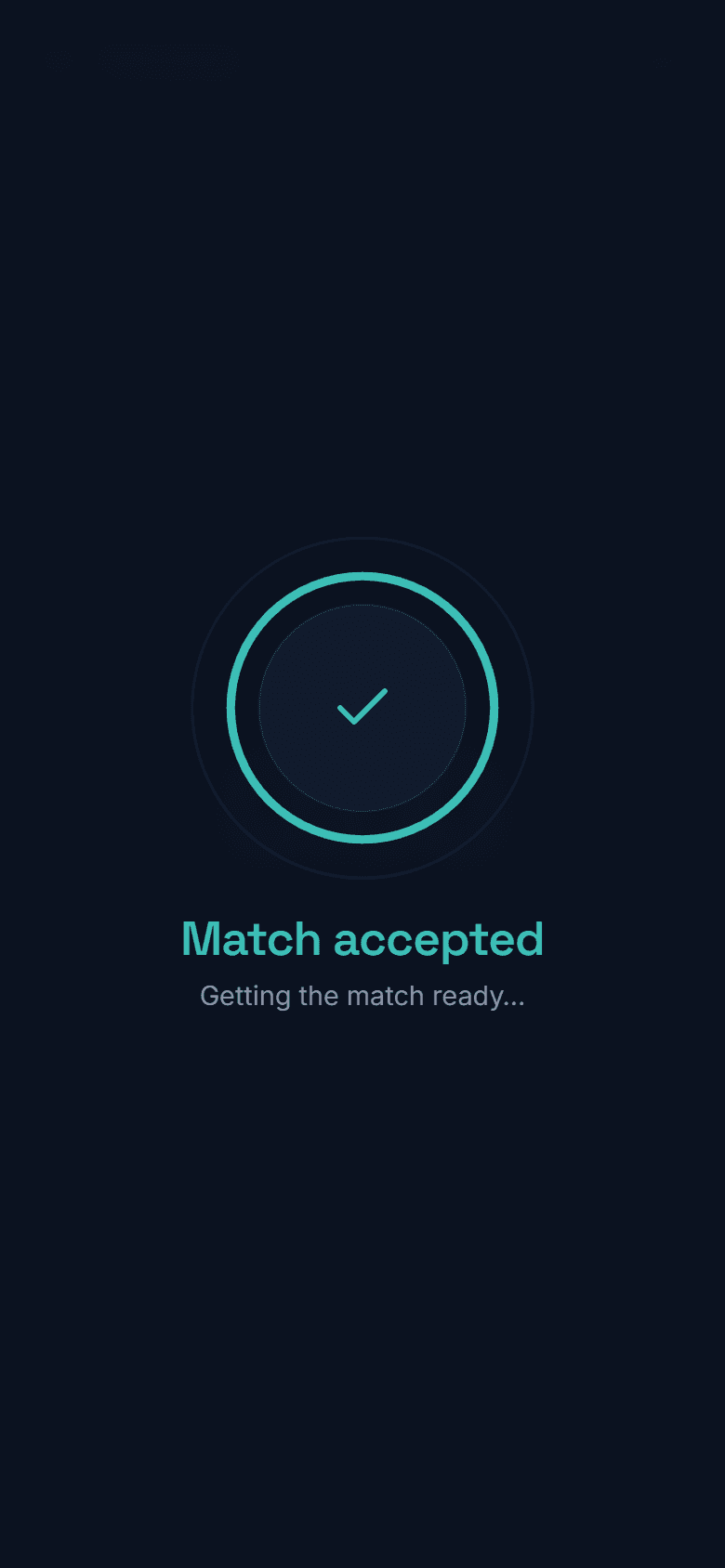
Instant confirmation once you answer.
Security
Safe by design.
MutchEz does not play for you and does not touch the game. It just relays the accept button to your phone.
No memory injection
MutchEz never reads or modifies game memory, injects DLLs or touches game files. It does not interact with the game process at all.
Official client API
It only talks to the League Client through the LCU API that the client already exposes, listening for queue and match-found events.
Local network only
The connection between your PC and phone runs on a local server. Only devices on your home network can reach it.
Roadmap
Next up: champ select from your phone.
Accepting matches is just the start. The next big step is letting you handle the whole draft from your phone before the game begins.
Available now
- Accept or decline matches
- QR pairing between PC and phone
- Live queue timer
- League Client connection status
Coming in the future
- Enter draft pick from your phone
- Pick and lock in your champion
- Ban champions
- Choose your runes
- Choose your summoner spells
- Swap pick order with teammates
- Swap roles and positions
These features are planned and do not have a release date yet.
FAQ
Questions, answered.
Need something else? Reach out using the options below.
What is MutchEz?
MutchEz is a Windows app that lets you accept or decline League of Legends matches from your phone. It creates a bridge between your PC and phone through a local server, and you connect by scanning a QR code.
Do I need to install anything on my phone?
No. Scanning the QR code opens MutchEz in your phone’s browser. It works on both Android and iPhone.
Do my phone and PC need to be on the same network?
Yes. For security, your PC only accepts instructions from devices on your home network, which prevents access from outside.
When should I scan the QR code?
Scan it before you enter the queue. Once scanned, your phone stays paired with your PC for the session.
Does my PC need to stay on?
Yes. Your PC must stay on with the League of Legends client open, since MutchEz forwards your decision to that client.
Does MutchEz accept matches automatically?
No. MutchEz never accepts or declines on its own. You always make the choice from your phone.
Can I get banned for using MutchEz?
MutchEz is built on the League Client (LCU) API and does not inject into memory, modify game files or interact with the game process. It does not automate gameplay.
Is it free?
Yes. MutchEz is free and does not require an account.
Donate
Help keep MutchEz free.
MutchEz is an independent project. If it saves you a dodge, you can support its development with whatever you want to give. Every contribution helps build the features on the roadmap.
Make a donationDonations are voluntary and do not unlock extra features.